

Create a backup plan
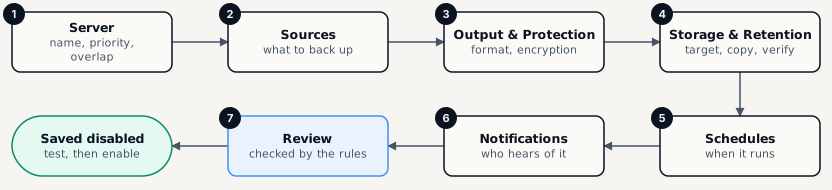
-
Open Backups › Backup plans and click New plan
-
Server
Name the plan and pick the Server - the plan belongs to that server’s environment. Optionally set Priority, Does not overlap with (its own runs, any run on the server, or nothing) and a Maximum runtime.
-
Sources
Add source for each thing to back up. Sources run in the order listed. See the table below.
-
Output & Protection
Choose the File type, compression and encryption. Options your policies forbid are greyed out with the reason. A password is generated and shown once - store it. See Encryption and keys.
-
Storage & Retention
Pick the Storage target, an optional Second copy, the Retention policy, and verification: Quick (size, ETag and parts) after every upload, Deep (read back and hash) every N days. Set the RPO and Target RTO you promise.
-
Schedules
Add schedule - or none, and the plan runs only when someone starts it. See Schedule backups.
-
Notifications
Attach existing rules, add a Quick rule: notify when this plan fails, and an optional Heartbeat ping URL for an outside monitor.
-
Review - then Save & test or Save disabled
Each section can be edited from here. Save & test saves the plan disabled and runs a dry run that stores nothing; when it passes, Enable plan.
What a plan can back up
Section titled “What a plan can back up”| Source type | Captures | Consistency |
|---|---|---|
| Folder · File · Configuration files | Paths on the server, optionally with ACLs and extended attributes. | As the files are at that moment - add a pre-hook if an application writes to them. |
| Database | A database instance through its native dump tool: all databases, some, or chosen tables. | The engine’s own consistent dump. |
| Docker / Podman volume | One named volume. | Leave it running, Pause its containers, or stop them. |
| Docker / Podman container filesystem | A container’s own filesystem. | Pause or stop the container. |
| Docker image | An image by name and tag, saved pinned to its digest. | Images do not change. |
| Compose project | A whole compose project and its volumes. | Stop the project (in reverse start order, restarted after) or Pause its containers. |
| Custom command | Whatever a command prints. | Up to the command. |